SEO for PDF Files: Make Useful Documents Discoverable Without Competing With Web Pages
PDFs can answer valuable search queries, but they may also duplicate or distract from your HTML pages. Learn how to decide which documents to index, improve their search visibility, and guide visitors to the right next step.
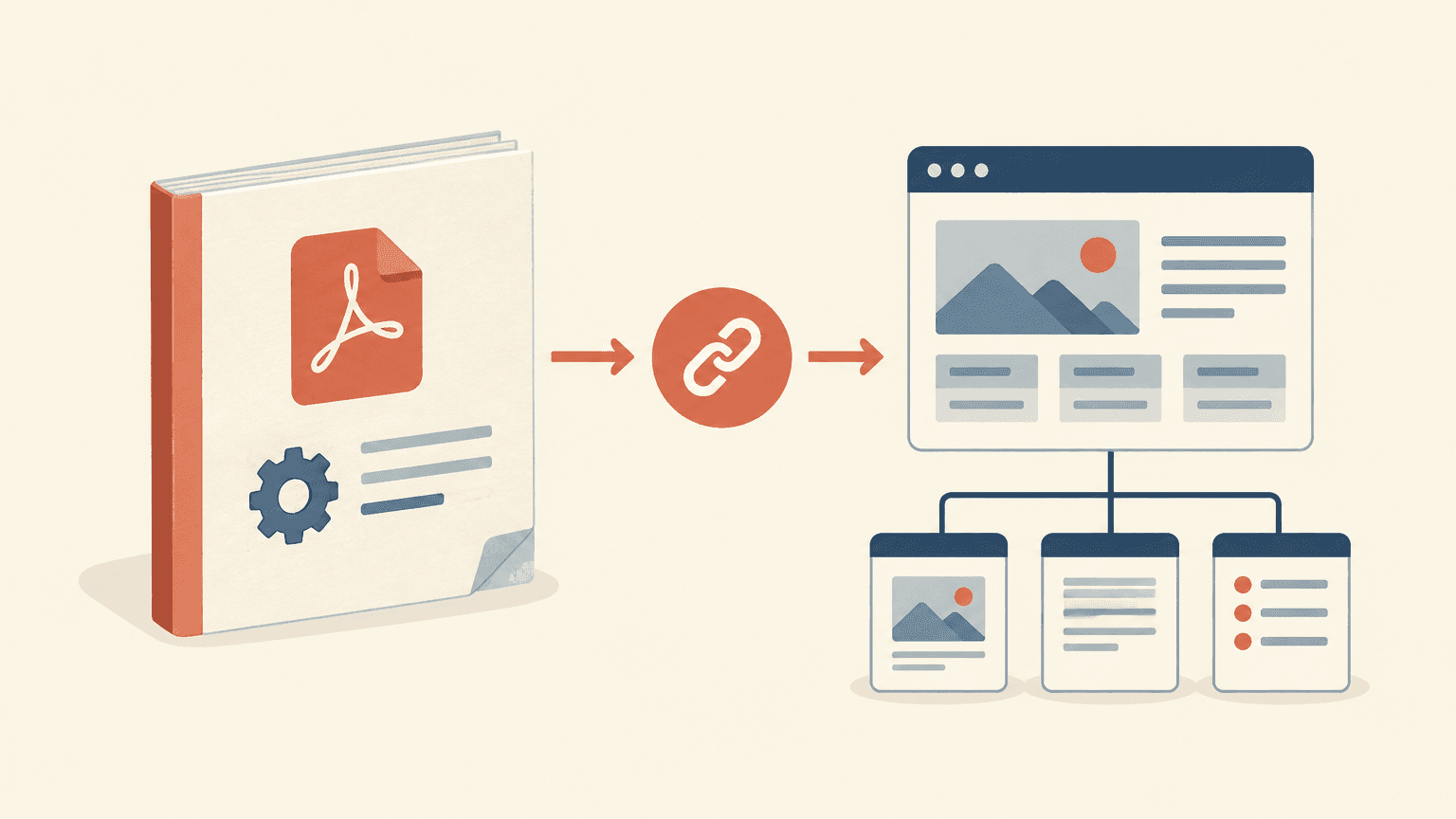
A PDF should appear in search when the document itself is the most useful destination: a product manual, a detailed research report, or a printable reference. An HTML page should usually take priority when readers need navigation, current information, an accessible interactive experience, or a clear next action. The goal of PDF SEO is not to index every document. It is to decide which format should answer each search, then make that choice clear through content, internal links, and indexing controls.
Start with the PDFs already receiving search visibility. Improve the valuable ones, retire misleading versions, and give important documents a useful home on your website. This decision guide follows that order so you do not spend time polishing files that should be replaced or kept out of search.
How to Find PDFs Already Appearing in Search
Use Google Search Console, a website crawl, and your file inventory together. Each shows a different part of the picture: Search Console reveals recorded search performance, a crawler finds documents reachable through links, and your content management system or storage inventory can expose files that are no longer linked from the site.
In the Search Console Performance report, filter page URLs for .pdf and review clicks, impressions, queries, and trends. Export the results for comparison. This filter can miss document URLs without a PDF extension.
Search Google with site:example.com filetype:pdf to spot visible documents, unexpected versions, and search-result titles. Treat the results as a sample, not a complete index inventory.
Crawl the website and extract PDF URLs, response codes, incoming internal links, and link destinations. Check whether files also exist on asset subdomains or a separate document host.
Review available server or CDN logs for PDF requests. Separate likely search-engine crawling from human requests where possible; neither a request nor a download proves that someone read the document.
Create one audit row per document URL. Record its subject, owner, intended audience, publication or revision date, search visibility, internal links, related HTML page, and recommended action. Add notes about duplicate editions, scanned pages, broken links, and whether the document is still accurate. Include the full URL: two identical files at different addresses are still separate URLs to manage.
No search clicks does not automatically mean no value. A manual may serve a small group of customers with a critical task. Judge each file by its purpose and accuracy as well as its traffic.
Choose Which Documents Deserve to Be Indexed
Give each PDF one of four outcomes: keep indexed, keep accessible but exclude from search, replace with a better destination, or remove. Make the decision at the document level rather than applying a blanket rule to the entire uploads folder.
Keep indexed when the file is accurate, useful on its own, and suited to a document format. Examples include model-specific manuals, substantive reports, and printable technical references.
Keep accessible but exclude from search when people need a download but the HTML version is the better search destination, or when an older edition must remain available for reference.
Replace when another resource genuinely fulfills the same need. A permanent redirect can help users and search engines reach the replacement, provided it is a close match.
Remove when the file has no continuing purpose and no suitable replacement. Return an appropriate not-found or gone response rather than redirecting every retired document to the homepage.
Use the right control for exclusion or consolidation
For a PDF that should remain publicly accessible but not appear in search, configure an X-Robots-Tag HTTP response header with a noindex directive. A PDF cannot use an HTML robots meta tag. Search engines must be able to crawl the file to see its noindex header, so blocking it in robots.txt can prevent discovery of that instruction. Removal is not immediate; allow time for recrawling.
For substantially equivalent HTML and PDF versions, a canonical link in the PDF's HTTP response header can identify the HTML URL as the preferred version. Canonicalization is a signal, not a guarantee, and it is not an access restriction. Use it for duplicate or very similar content, not to point a detailed manual at a short promotional page. If the PDF must be excluded from results, use noindex rather than relying on canonicalization.
Neither noindex nor robots.txt protects confidential information. Documents containing private data need access controls. Search exclusion is a visibility decision, not a security measure.
Improve PDF Titles, Text, Links, and Accessibility
Optimize the source document before exporting whenever possible. Fixing headings, reading order, descriptive text, and links in the authoring file is usually easier to maintain than repairing each exported PDF separately. Inspect the exported result as well: conversion can lose structure or create unexpected layout problems.
Make the document's identity clear
Set a descriptive document title in the PDF properties and use a matching, readable title on the first page. Include the distinguishing details a reader needs, such as the product model, report topic, language, or edition. Search engines may construct result titles from several signals, so metadata alone does not determine the displayed title. A clear opening paragraph also helps readers who arrive directly from search understand what the file covers.
Use a meaningful filename for new files, such as model-z-installation-manual.pdf rather than final-document-v7.pdf. Do not rename an established URL solely to add keywords. If a change is necessary, redirect the old URL to its replacement and update internal links. Author and subject properties can provide useful context, but do not treat PDF metadata fields as a shortcut to rankings.
Provide readable text and usable structure
Check whether you can select, search, and copy the text. If the file is a scan, apply optical character recognition and proofread the output, especially model numbers, formulas, tables, and safety instructions. Search engines may extract text from some image-based documents, but that is not a substitute for a reliable text layer or an accessible document.
Export a tagged PDF with logical heading levels, paragraphs, lists, and properly structured tables.
Check reading order, particularly in multi-column layouts, sidebars, and pages with diagrams.
Set the document language and provide useful alternative text for meaningful images. Keep decorative elements from interrupting the reading flow.
Add bookmarks and a linked table of contents to long documents so readers can reach relevant sections.
Use readable type, adequate contrast, and descriptive link text. Test keyboard navigation and assistive-technology behavior rather than relying only on an automated checker.
Accessibility improvements primarily help people use the document; they should not be presented as guaranteed ranking factors. They also make content easier to navigate and interpret. A tagged file can still contain serious accessibility problems, and a successful automated check does not establish full accessibility or legal compliance.
Connect the PDF to the rest of the site
Link to important PDFs from relevant HTML pages using descriptive anchor text. Identify the format and, when useful, the file size so readers know what will open. Within the PDF, include links to the document's web page, related support information, and the next action appropriate to its purpose. Use complete web URLs and test them after export.
Reduce unnecessarily large images and remove unused assets without making diagrams or text illegible. Test the file on a phone as well as a desktop. Compression improves the practicality of a download, but a compact PDF can still be difficult to read on a small screen; that limitation may justify an HTML alternative.
Decide When to Use HTML, a PDF, or Both
Choose the primary format around the task, not the format your team already produced. HTML is usually easier to navigate on different screen sizes, update in small sections, connect to site navigation, and measure with standard web analytics. PDFs preserve a fixed layout and are convenient for downloading, printing, and retaining an identifiable edition.
Prefer HTML for frequently changing instructions, product comparisons, service information, and tasks that require forms, filtering, or movement between related pages.
Prefer a PDF when a stable printable layout, offline use, or an edition-specific reference is central to the reader's task.
Use both when readers need a web experience and a downloadable reference. Assign each version a clear role and decide deliberately whether both should appear in search.
Distinguish useful overlap from competing destinations
A PDF and an HTML page mentioning the same topic do not automatically create an SEO problem. Investigate whether they answer the same searches and whether visitors land on the less useful version. In Search Console, inspect relevant queries and the pages receiving impressions and clicks. Look for a PDF appearing for a task that requires current web content, or an HTML summary appearing when readers clearly want the complete report.
Hypothetical example: a manufacturer has a current product page and an installation manual. The product page should explain specifications, compatibility, and purchasing options; the manual should answer installation questions for the exact model. Both can be indexed because they serve different tasks. An outdated price catalog appearing for current pricing searches is a different case: move current pricing to HTML and decide whether the old catalog needs an archive page, search exclusion, or removal.
When publishing both formats, make the HTML page useful rather than a download button surrounded by a few generic sentences. Explain the document's scope, audience, edition, and key findings or instructions as appropriate. If the page contains only a summary and the PDF holds the full report, they are not necessarily equivalent enough for canonical consolidation. Either allow their different roles or exclude the PDF if HTML must be the sole search destination.
Measure Visits and Maintain Documents Over Time
Measure search discovery separately from on-site downloads. Search Console can report search clicks to a PDF URL, but ordinary page analytics generally does not run inside the PDF. Download-event tracking on an HTML page records clicks on a file link, not every direct search arrival, completed download, or document read. Server and CDN logs add request data, though bots, caching, and partial-file requests complicate interpretation.
Track search clicks, impressions, and query relevance for important PDF URLs and their related HTML pages.
Track PDF-link clicks from your website, checking how your analytics setup defines and records downloads.
Review referrals from links inside documents where measurable. Campaign parameters can help distinguish those visits, but shared files and privacy controls limit attribution.
After a redirect, noindex, or canonical change, check the delivered HTTP headers and revisit search reporting after recrawling. Do not judge the change from a single day's data.
Give each important document an owner and a review schedule based on how quickly its content becomes unreliable. Keep a revision record, check links, and verify that the PDF and HTML versions agree. For manuals tied to a specific product revision, preserve clearly labeled editions rather than silently replacing historical instructions. For an evergreen reference, a stable URL may make maintenance easier if the revision is clearly identified.
Keep archives navigable without letting obsolete files masquerade as current advice. Label superseded editions, link to the current resource, and choose their indexing status intentionally. Update internal links and sitemaps to favor current, indexable destinations. Remember that downloaded copies can continue circulating after the website changes, so include a route back to a page where readers can verify the latest version.
Next step: audit your most visible PDFs first. For each one, name the reader's task, choose the preferred search destination, and assign a specific action: improve, consolidate, exclude, redirect, or remove. Then verify the live file and its response headers before moving to the next batch.